Student Summit Blah
Tuesday, September 15, 2020

Tuesday, August 18, 2020
Book Creator
What I know about Book Creator:
On this website you can create your own book. You can add sound, pictures, text and drawings. It connects to google so you can also search up images from the internet to help your story.
Here is the link to a book I created.
What do you think I could add to my book creator?
Wednesday, July 22, 2020
What Makes a Good Comment? Read this to find out more!
Today in Cybersmart we have been working on identifying what is a good comment and what is a not so good comment. Good comments have a greeting, positive, thoughtful, helpful and ask a question. We also learnt a new shortcut - control, alt, m = write a comment on a google tool. The shortcut helped us complete the task we had to do.
Today I worked with Mr Matai. You can see his blog here.


For today’s task we had to collaborate (work in pairs) to read and create comments on comments that have been written on blog posts. We had to give the comment a thumbs up or a thumbs down depending on whether it was good or not. Then we had to leave a comment letting you know why we thought that.
I think that Mr Matai and I worked really well together, we talked about what we thought and had very similar ideas.
What do you think a good comment needs?
Wednesday, June 10, 2020
Quality Blog Post: All About Me Drawing
Hello Readers,
During Cybersmart last week we were learning about copyright. I learnt that we need to have permission for the images we use online. For this task we used the explore tool and also photographs from a website called Unsplash. We had to fill in the boxes to explain more about us. Here is the link to the slide show that helped me with my learning.

During this task it was really hard to make the photos fit into the boxes. We had to crop them and try hard to not stretch the photos. To crop an image you double click it so that instead of the blue squares you end up with black lines. These lines allow you to make the photo smaller without stretching it.
A lot of the images I have used in this post can be found on the website Unsplash (click on the word to be taken to the site).
Thank you for taking the time to read my post!
What is something you have learnt about me by looking at my DLO?
During Cybersmart last week we were learning about copyright. I learnt that we need to have permission for the images we use online. For this task we used the explore tool and also photographs from a website called Unsplash. We had to fill in the boxes to explain more about us. Here is the link to the slide show that helped me with my learning.

During this task it was really hard to make the photos fit into the boxes. We had to crop them and try hard to not stretch the photos. To crop an image you double click it so that instead of the blue squares you end up with black lines. These lines allow you to make the photo smaller without stretching it.
A lot of the images I have used in this post can be found on the website Unsplash (click on the word to be taken to the site).
Thank you for taking the time to read my post!
What is something you have learnt about me by looking at my DLO?
Wednesday, March 18, 2020
For Room 5
2020 Teaching Notes- Smart Learner
The Big Ideas: Understanding the Kawa of Care, being a digital native (shortcut keys, knowing your drive, understanding that what you do is online and can be accessed from any device, hapara is what teachers use to help keep you smart online).
The Pedagogy
Learn
Create
Share
Multiple sources of information
Scaffolding for success
Student agency / choice
Differentiation
A chance to synthesis the learning
Being original
Collaboration
Understand how to use your chromebook to collaborate with others (working on a shared doc)
Participate in positive and supportive ways online
Lesson ONE - Whole Class
Learning focus - Shortcut keys, taught through the creation of an animation.
What is an animation? (Watch clips of Mickey and Flipbook) Ask students to think about how the author created the video or moving image.
When and why would you use one for learning? (To tell a story or make a point in an interesting way)
Downside to an animation = time it takes to create
What you need to know to make one… Copy (control + c), Paste (control + v), Duplicate (control + d), Undo (control + z), how to change the background, how to insert and image, and how to add a shape.
Student task -
Create a blank slide in their Cybersmart folder (They will need to locate their drive and their folder OR they can move it once it has been created by using the little folder icon next to the title) .
Rename the slide ‘Their name Animation’.
Change background
Give title to the animation on the first slide
Add slide to begin storytelling on
Insert a character
Teacher prompts - How are you going to… ?
Make your character move from one side of the page to the other
Make your character move away and then towards the screen
Make your character do a flip
Things you could create an animation about - your journey to school this morning, something you did over the christmas break, a meal you ate or made, something you enjoy doing in your spare time, something that tells us something about you.
🤩🤩Level up by - Adding speech or story sentences (think about how long you will need to read the text and duplicate the exact slide at least 5 times).
🤩🤩🤩Level up by - Drawing or tracing your own images in google draw and then using these in your animations
Lesson TWO - Group Teaching Kawa of Care 15mins a group, Independent work on animation.
Learning focus - Shortcut keys, taught through the creation of an animation. Kawa of Care.
Recap - Shortcut and animation learning
“Today we are moving into a different kind of Cybersmart session. You are going to be split into three groups. When you are not with the teacher you will be working either in peers or independently.”
Key parts of the ‘Kawa (Protocol) of Care’ that relate to students are the top section ‘Responsible Use Agreement’ and ‘User Conditions - when using and moving your chromebook’.
Students not with teacher are continuing with animation from Lesson 1 today is their last opportunity to get this animation finished.
Group session:
Lay images of damaged chromebooks on table or display on the screen…
“Looking at these images of damaged chromebooks, I want you to discuss with the person next to you: What happened to the chromebook? Think about which part is damaged and how it got damaged in the first place.” Share back an idea from each group.
Have any of you heard of the Kawa of Care? (Have a printed out version to display) Why do you think schools and teachers created a Kawa of Care?
There are two sections which were created for students to agree to, that will ensure that their Chromebook does not get damaged. They are the ‘Responsible Use Agreement’ and ‘User Conditions - when using and moving your chromebook’.
In peers - look through this document and Highlight the sections:
Talk with your buddy and decide which ideas are:
- ‘Really Really Important/Critical for people as well as for devices” highlight these YELLOW
- ‘very important’ - highlight these GREEN
- ‘obvious when working with technology’ - highlight these BLUE
Remember that to highlight a sentence click three times.
Students will need to:
Create a copy
Share to their buddy
Put the copy into the correct folder
While students are working in peers take the time to have extended learning conversations (5 back and forward) with a couple of groups.
Next week we will be using the yellow ideas to create an animation.
Lesson Three - 3 groups - same peers as last week.
While students are not with the teacher working on “Shortcut Speed Test”. This is a speed test of your skills vs your buddies working on a collaborative document. It builds on the content some students went over in Term 4 2019, as well as, the newly acquired skills.
Once/If students have completed the shortcut challenge they can give feedback to each other on their animations. Give feedback by telling your buddy two things you like about their animation and one thing that they could improve on.
Group session:
Last week we looked at the Kawa of Care document… remind me why we did that?
Today we are going to take one of the ideas from the document and work independently to create a storyboard of it.
What is a storyboard?
When and why do we use one?
Paper or computer? (Your choice) Make sure you have some printed copies.
Students will need to:
Create a copy
Put the copy into the correct folder
Pick one idea to create a storyboard
Get their storyboard checked off by a teacher
Create an animation based on their storyboard
While students are working, take the time to have extended learning conversations (5 back and forward) with a couple of students.
Lesson Four - 3 groups - same peers as last week.
While students are not with the teacher working on their Kawa of Care animation.
Group session:
How well do you know your chromebook? Today we are going to focus on the keys that make the Chromebook and google unique. Knowing what functions your device has will help you go faster!
Think about what keys you already know as you move through this slidedeck (make a copy)
Slide 2 model using Find Bar, highlight keywords using highlighter tool.
Slide 3 read text and focus on buttons
Slide 4 Position the labels to show the location of these keys on your keyboard. Take some time to practise using each of these keys.
Slides 4,5 & 6 explore interactives. Discuss how the author uses a combination of text and animation to engage and support the reader.
Lesson Five - 3 groups - same peers as last week.
While students are not with the teacher working on their Kawa of Care animation.
Group session:
Blogs the gadgets and what they mean - Go through this slidedeck. Encourage the students to look at their blog and ask questions about what they are seeing…. This lesson should be driven by what students want to know and discuss guided by the slidedeck.
Complete the blog form about your blog, bookmark it etc.
Lesson Six - 3 groups - same peers as last week.
While students are not with the teacher working on Posting to their blogs
Group session:
Images online - who owns them, unsplash and google drawing.
Who do you think owns the images online? The images online have a thing called copyright. Who has heard of that before? What do you think it means? Watch the video here.
Using images that are copyrighted is stealing. So we need to make sure that we are being smart about how we use images online. There are some images that the author has allowed to be shared in the public domain. This means that anyone can use them. They have the copyright licence C0 and are labelled for reuse by anyone. Of course when you get older, even images in the public domain should be referenced at the end of your work (This is something I would expect of Year 6+).
Show/Tell/Explain - The best way to get an image that is in the public domain (C0) is to use the tool explore in our google docs, drawings and slides. Or you could always Draw, Take a Picture or Create an image yourself!
Go through this slide deck. Support students to make a copy of the student version and place in the correct folder. (Teacher note: that the link from the slide deck will take students directly to a prompt to make a copy - this is cutting out a step and is quicker for work flow… show how to do this)
Slide 7& 9 - students search using google images and the explore tool.
Slide 10 + - students are completing challenges for images.
Lesson Seven - 3 groups - same peers as last week.
While students are not with the teacher working on Completing the work from the previous week - slide deck and About Me Image.
Group session:
Images online - moving images - creating a gif…
Students may have already experienced what a GIF is in their own environment so ask them to explain what they think it is… See if they can make the connection between the animations that they have been making and a GIF.
The real difference between an animation and a GIF is the length of time and number of slides used. Typically a GIF will share one simple idea on repeat in contrast an animation will tell a story. GIF’s are great for explaining how to do one thing on a computer, share one math idea, make a joke etc.
Students should have an example that they can turn into a GIF from week 1. Just a simple animation of a character moving from one side to the other. This will be a great starting place. Get students to open the animation from week 1 so that they can search for the title. Follow the steps on the slide deck (slide 2). Once students have mastered this with a simple already created animation they can then move on to creating one like the Teacher example slide deck for math.
Teacher will need to ensure students know a math strategy that they can share.
Students will need to open a blank slide in the Cybersmart Folder and create a sequence to show how they solve a math problem.
The Big Ideas: Understanding the Kawa of Care, being a digital native (shortcut keys, knowing your drive, understanding that what you do is online and can be accessed from any device, hapara is what teachers use to help keep you smart online).
The Pedagogy
Learn
Create
Share
Multiple sources of information
Scaffolding for success
Student agency / choice
Differentiation
A chance to synthesis the learning
Being original
Collaboration
Understand how to use your chromebook to collaborate with others (working on a shared doc)
Participate in positive and supportive ways online
Lesson ONE - Whole Class
Learning focus - Shortcut keys, taught through the creation of an animation.
What is an animation? (Watch clips of Mickey and Flipbook) Ask students to think about how the author created the video or moving image.
When and why would you use one for learning? (To tell a story or make a point in an interesting way)
Downside to an animation = time it takes to create
What you need to know to make one… Copy (control + c), Paste (control + v), Duplicate (control + d), Undo (control + z), how to change the background, how to insert and image, and how to add a shape.
Student task -
Create a blank slide in their Cybersmart folder (They will need to locate their drive and their folder OR they can move it once it has been created by using the little folder icon next to the title) .
Rename the slide ‘Their name Animation’.
Change background
Give title to the animation on the first slide
Add slide to begin storytelling on
Insert a character
Teacher prompts - How are you going to… ?
Make your character move from one side of the page to the other
Make your character move away and then towards the screen
Make your character do a flip
Things you could create an animation about - your journey to school this morning, something you did over the christmas break, a meal you ate or made, something you enjoy doing in your spare time, something that tells us something about you.
🤩🤩Level up by - Adding speech or story sentences (think about how long you will need to read the text and duplicate the exact slide at least 5 times).
🤩🤩🤩Level up by - Drawing or tracing your own images in google draw and then using these in your animations
Lesson TWO - Group Teaching Kawa of Care 15mins a group, Independent work on animation.
Learning focus - Shortcut keys, taught through the creation of an animation. Kawa of Care.
Recap - Shortcut and animation learning
“Today we are moving into a different kind of Cybersmart session. You are going to be split into three groups. When you are not with the teacher you will be working either in peers or independently.”
Key parts of the ‘Kawa (Protocol) of Care’ that relate to students are the top section ‘Responsible Use Agreement’ and ‘User Conditions - when using and moving your chromebook’.
Students not with teacher are continuing with animation from Lesson 1 today is their last opportunity to get this animation finished.
Group session:
Lay images of damaged chromebooks on table or display on the screen…
“Looking at these images of damaged chromebooks, I want you to discuss with the person next to you: What happened to the chromebook? Think about which part is damaged and how it got damaged in the first place.” Share back an idea from each group.
Have any of you heard of the Kawa of Care? (Have a printed out version to display) Why do you think schools and teachers created a Kawa of Care?
There are two sections which were created for students to agree to, that will ensure that their Chromebook does not get damaged. They are the ‘Responsible Use Agreement’ and ‘User Conditions - when using and moving your chromebook’.
In peers - look through this document and Highlight the sections:
Talk with your buddy and decide which ideas are:
- ‘Really Really Important/Critical for people as well as for devices” highlight these YELLOW
- ‘very important’ - highlight these GREEN
- ‘obvious when working with technology’ - highlight these BLUE
Remember that to highlight a sentence click three times.
Students will need to:
Create a copy
Share to their buddy
Put the copy into the correct folder
While students are working in peers take the time to have extended learning conversations (5 back and forward) with a couple of groups.
Next week we will be using the yellow ideas to create an animation.
Lesson Three - 3 groups - same peers as last week.
While students are not with the teacher working on “Shortcut Speed Test”. This is a speed test of your skills vs your buddies working on a collaborative document. It builds on the content some students went over in Term 4 2019, as well as, the newly acquired skills.
Once/If students have completed the shortcut challenge they can give feedback to each other on their animations. Give feedback by telling your buddy two things you like about their animation and one thing that they could improve on.
Group session:
Last week we looked at the Kawa of Care document… remind me why we did that?
Today we are going to take one of the ideas from the document and work independently to create a storyboard of it.
What is a storyboard?
When and why do we use one?
Paper or computer? (Your choice) Make sure you have some printed copies.
Students will need to:
Create a copy
Put the copy into the correct folder
Pick one idea to create a storyboard
Get their storyboard checked off by a teacher
Create an animation based on their storyboard
While students are working, take the time to have extended learning conversations (5 back and forward) with a couple of students.
Lesson Four - 3 groups - same peers as last week.
While students are not with the teacher working on their Kawa of Care animation.
Group session:
How well do you know your chromebook? Today we are going to focus on the keys that make the Chromebook and google unique. Knowing what functions your device has will help you go faster!
Think about what keys you already know as you move through this slidedeck (make a copy)
Slide 2 model using Find Bar, highlight keywords using highlighter tool.
Slide 3 read text and focus on buttons
Slide 4 Position the labels to show the location of these keys on your keyboard. Take some time to practise using each of these keys.
Slides 4,5 & 6 explore interactives. Discuss how the author uses a combination of text and animation to engage and support the reader.
Lesson Five - 3 groups - same peers as last week.
While students are not with the teacher working on their Kawa of Care animation.
Group session:
Blogs the gadgets and what they mean - Go through this slidedeck. Encourage the students to look at their blog and ask questions about what they are seeing…. This lesson should be driven by what students want to know and discuss guided by the slidedeck.
Complete the blog form about your blog, bookmark it etc.
Lesson Six - 3 groups - same peers as last week.
While students are not with the teacher working on Posting to their blogs
Group session:
Images online - who owns them, unsplash and google drawing.
Who do you think owns the images online? The images online have a thing called copyright. Who has heard of that before? What do you think it means? Watch the video here.
Using images that are copyrighted is stealing. So we need to make sure that we are being smart about how we use images online. There are some images that the author has allowed to be shared in the public domain. This means that anyone can use them. They have the copyright licence C0 and are labelled for reuse by anyone. Of course when you get older, even images in the public domain should be referenced at the end of your work (This is something I would expect of Year 6+).
Show/Tell/Explain - The best way to get an image that is in the public domain (C0) is to use the tool explore in our google docs, drawings and slides. Or you could always Draw, Take a Picture or Create an image yourself!
Go through this slide deck. Support students to make a copy of the student version and place in the correct folder. (Teacher note: that the link from the slide deck will take students directly to a prompt to make a copy - this is cutting out a step and is quicker for work flow… show how to do this)
Slide 7& 9 - students search using google images and the explore tool.
Slide 10 + - students are completing challenges for images.
Lesson Seven - 3 groups - same peers as last week.
While students are not with the teacher working on Completing the work from the previous week - slide deck and About Me Image.
Group session:
Images online - moving images - creating a gif…
Students may have already experienced what a GIF is in their own environment so ask them to explain what they think it is… See if they can make the connection between the animations that they have been making and a GIF.
The real difference between an animation and a GIF is the length of time and number of slides used. Typically a GIF will share one simple idea on repeat in contrast an animation will tell a story. GIF’s are great for explaining how to do one thing on a computer, share one math idea, make a joke etc.
Students should have an example that they can turn into a GIF from week 1. Just a simple animation of a character moving from one side to the other. This will be a great starting place. Get students to open the animation from week 1 so that they can search for the title. Follow the steps on the slide deck (slide 2). Once students have mastered this with a simple already created animation they can then move on to creating one like the Teacher example slide deck for math.
Teacher will need to ensure students know a math strategy that they can share.
Students will need to open a blank slide in the Cybersmart Folder and create a sequence to show how they solve a math problem.
Wednesday, December 11, 2019
SLJ Day 5 Activity 1
Before you share a photo online you need to:
Ask the person you are taking a photo of if it is alright.
Not take a photo in your bedroom or bathroom.
Make sure that no one can see your house number or school logo.
Think about whether it is a photo you want everyone to see!
Ask the person you are taking a photo of if it is alright.
Not take a photo in your bedroom or bathroom.
Make sure that no one can see your house number or school logo.
Think about whether it is a photo you want everyone to see!
Monday, September 23, 2019
Monday, March 25, 2019

Tuesday, March 19, 2019

Monday, November 26, 2018
A bit about me for Emma the SLJ person
Hey Emma,
 My name is Kelsey and I go to Hornby High, I am a year 7 this year but next year I will be in year 8.
I really like playing with my dog in my spare time. I also enjoy going to the river and watching movies! I don't really have a favourite movie but I really like the genre of Comedy. What movies do you like watching? Do you have a favourite?
Over the holidays I will be taking my dog Cooper for lots of walks, but between times I will be working on my Summer Learning Journey and Commenting on lots of other peoples blogs! I really hope that I can win!
If I won the Summer Learning Journey I really would like... some vouchers to go to the movies, some chocolate, a toy for my dog Cooper, a Chromebook and some headphones...
Here is a picture of my pooch with his current favourite toy warthog!


I really like playing with my dog in my spare time. I also enjoy going to the river and watching movies! I don't really have a favourite movie but I really like the genre of Comedy. What movies do you like watching? Do you have a favourite?
Over the holidays I will be taking my dog Cooper for lots of walks, but between times I will be working on my Summer Learning Journey and Commenting on lots of other peoples blogs! I really hope that I can win!
If I won the Summer Learning Journey I really would like... some vouchers to go to the movies, some chocolate, a toy for my dog Cooper, a Chromebook and some headphones...
Here is a picture of my pooch with his current favourite toy warthog!

Tuesday, November 13, 2018
SLJ Practise: Speaking a New Language?
Hey Readers,
Today we are learning how to speak in the language of the country we chose for the Summer Learning Journey. I chose to go to South Africa - they speak Afrikaans there.

There are three phrases that we need to know!
Hello - Hallo
Thank you - Dankie
Do you speak English? - Praat jy Engels?
Then we had to add a photo of how I would feel in that country... Here is my selfie!
 I would be really excited and a little bit freaked out!!!
How would you feel?
Today we are learning how to speak in the language of the country we chose for the Summer Learning Journey. I chose to go to South Africa - they speak Afrikaans there.

There are three phrases that we need to know!
Hello - Hallo
Thank you - Dankie
Do you speak English? - Praat jy Engels?
Then we had to add a photo of how I would feel in that country... Here is my selfie!

How would you feel?
Thursday, October 25, 2018
SLJ Practise: Curious Kiwi is Looking for a Book to Read!
Hey Readers,
For the Summer Learning Practise this week we have been asked to share a book that we have read this year. The reason we are doing this is to help Curious Kiwi find a book to read on the plane for our trip to... SOUTH AFRICA. The book I am going to tell you about is "The Curious Incident of the Dog in the Night Time."

For the Summer Learning Practise this week we have been asked to share a book that we have read this year. The reason we are doing this is to help Curious Kiwi find a book to read on the plane for our trip to... SOUTH AFRICA. The book I am going to tell you about is "The Curious Incident of the Dog in the Night Time."
Thursday, October 18, 2018
SLJ Practise: Let's travel to South Africa!
Hey Readers,
This term we are learning about the Summer Learning Journey. For this I have chosen to travel to South Africa to learn more! Each week we have a blogging task to complete - hopefully you will learn more about this country too.
Today we are learning quick facts! Most of the information is on this link.
The capital city of South Africa is... Pretoria.
The population of the capital city is... 2.125 million people (which is just less than half of the population of New Zealand! Wow!)
In January the weather is.... 20 degrees and it is mid-summer.
The capital city is located near the top of the country you can see where on this map! (look down the bottom)
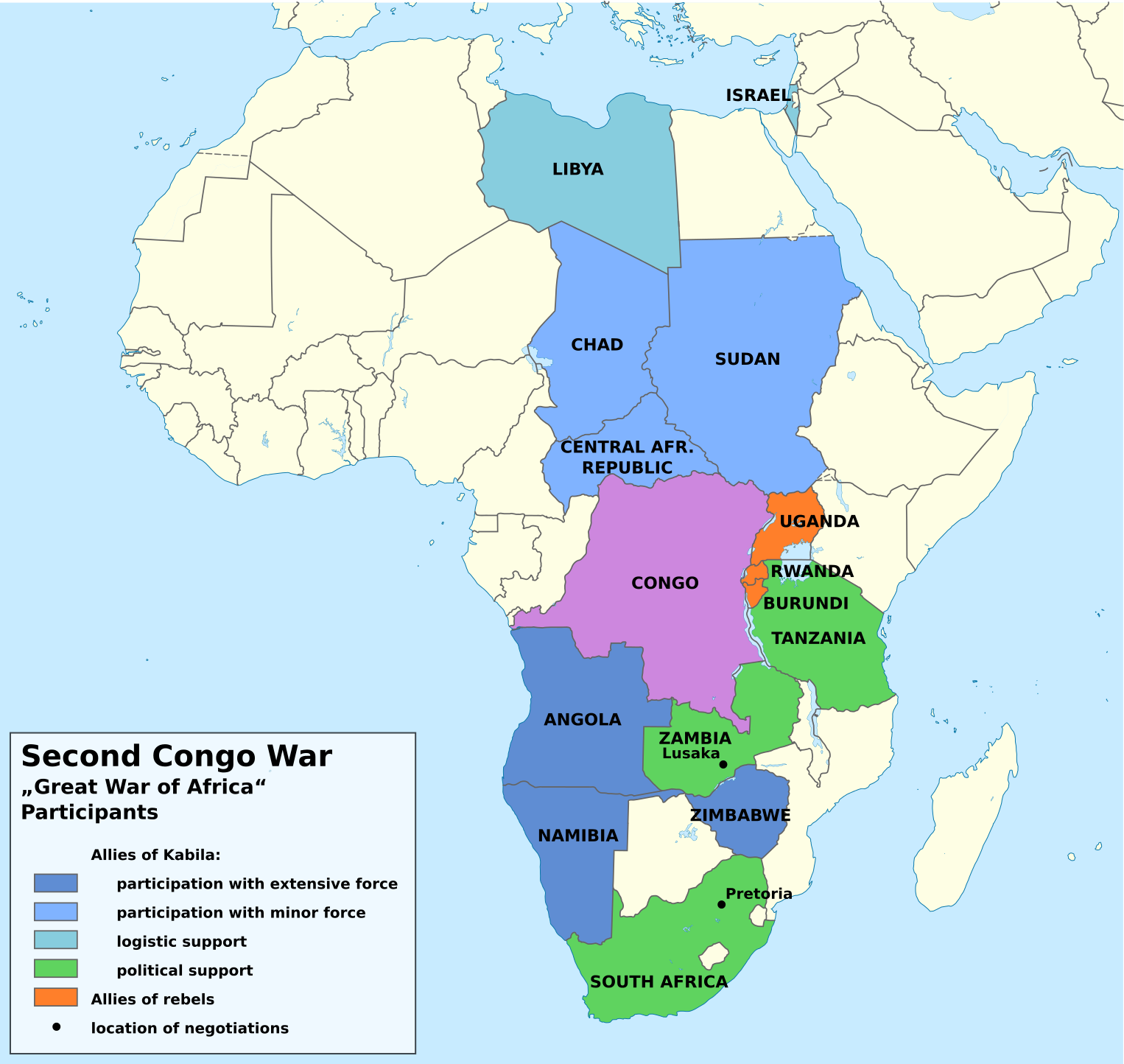
In South Africa there are 11 offical languages! That is a lot! They are Afrikaans, English, Ndebele, Northern Sotho, Sotho, Swazi, Tsonga, Tswana, Venda, Xhosa and Zulu. Most people speak more than one language.
I think it would be awesome to be able to visit South Africa! I think I would have some trouble with the different language though!
Where would you like to travel?
This term we are learning about the Summer Learning Journey. For this I have chosen to travel to South Africa to learn more! Each week we have a blogging task to complete - hopefully you will learn more about this country too.
Today we are learning quick facts! Most of the information is on this link.
The capital city of South Africa is... Pretoria.
The population of the capital city is... 2.125 million people (which is just less than half of the population of New Zealand! Wow!)
In January the weather is.... 20 degrees and it is mid-summer.
The capital city is located near the top of the country you can see where on this map! (look down the bottom)
In South Africa there are 11 offical languages! That is a lot! They are Afrikaans, English, Ndebele, Northern Sotho, Sotho, Swazi, Tsonga, Tswana, Venda, Xhosa and Zulu. Most people speak more than one language.
I think it would be awesome to be able to visit South Africa! I think I would have some trouble with the different language though!
Where would you like to travel?
Friday, September 7, 2018
How to Comment if You don't Have a Blog!
Our class is doing a commenting challenge
and I need everyone to leave me some
comments on my blog! We get different
points for different people! So PLEASE
leave me a comment.
and I need everyone to leave me some
comments on my blog! We get different
points for different people! So PLEASE
leave me a comment.
Wednesday, August 8, 2018
Check it out!
Hey Readers,

My name is Miss Morgan and I teach in Uru Manuka. I'm a person who loves dogs, races go-karts and has danced at Disneyland! The things I enjoy at school are art, drama and math. I love to use puns and joke around, I am always looking for fun!
I really want to know who is following my blog! Maybe this post will make you want to become a follower. To follow a blog you need to put your email address into the box that looks like this:


My name is Miss Morgan and I teach in Uru Manuka. I'm a person who loves dogs, races go-karts and has danced at Disneyland! The things I enjoy at school are art, drama and math. I love to use puns and joke around, I am always looking for fun!
I really want to know who is following my blog! Maybe this post will make you want to become a follower. To follow a blog you need to put your email address into the box that looks like this:
It is on the right hand side of my blog! -------->
You will have to make sure that you confirm that you are not a robot too! Please don't follow me down the bottom - this shares your private information! Not something that I want for any of my followers!
Please leave a comment below to let me know you are following me! I will make sure that I post interesting Art, creative writing and posts of my adorable dog Cooper!
That's all for now!
- Miss Morgan
Friday, April 27, 2018
My All About Me Poster!
This is a poster I have been working on during Cyber Smart time. It is all about me with my favourite things. Can you guess what these things are? I made sure that the images I used in my poster were from the Public Domain and made sure that the owner gave permission. I used a really cool website called Unsplash for the images.


Thursday, April 5, 2018
Coding 101 ~ swift playgrounds
Last week we went on a new website called code.org it is all about coding. Coding is when you write instructions for the computer or iPad to follow. We had to use blocks with movement instructions on them like move forward, turn right etc.
Here are some screenshots of the challenges I did:
 Above is the screenshot of the first challenge that I did.
 This is my favourite one and it was the last one that I got up to last week!

This is the level that I got up to today. I think coding is...
Here are some screenshots of the challenges I did:


This is the level that I got up to today. I think coding is...
Thursday, September 21, 2017
Internet and Etiquette: The Perfect Smart Relationship
These last few weeks we have been learning and teaching about etiquette online. (This is often called Netiquette.) We now know what it is and think it is important for others to learn as well. So this post is aiming to teach you about Netiquette!
To support our learning here is the slide deck that we completed. We learnt a lot by watching the videos, creating video notes and then a making mind mup. We were challenged to think about the 'because' or the 'why' the social rules apply.
The reflection question that I am going to ask is: What can you learn from this?
Being online or being face to face does not change how we treat one another. We should always aim to be kind and use our powers for good not evil! It is important to realise that even when you are online there is another person at the end of the network!
Sources:
Manaiakalani: Smart Relationships,
https://sites.google.com/a/manaiakalani.org/cybersmart/innovation/3-smart-commenting
ViralTube: Digital Etiquette, (2010) https://www.youtube.com/watch?v=1dumMk6da-U
Spread the word that Netiquette is the right thing to do! How are you going to share this with others? Let me know in the comments below!
To support our learning here is the slide deck that we completed. We learnt a lot by watching the videos, creating video notes and then a making mind mup. We were challenged to think about the 'because' or the 'why' the social rules apply.
The reflection question that I am going to ask is: What can you learn from this?
Being online or being face to face does not change how we treat one another. We should always aim to be kind and use our powers for good not evil! It is important to realise that even when you are online there is another person at the end of the network!
Sources:
Manaiakalani: Smart Relationships,
https://sites.google.com/a/manaiakalani.org/cybersmart/innovation/3-smart-commenting
Spread the word that Netiquette is the right thing to do! How are you going to share this with others? Let me know in the comments below!
Thursday, September 14, 2017
Screencastify and Slides
We have been learning to use Screencastify to record ourselves and put this onto a slide to share.
I really don't like to record my face - but I am okay with recoding my voice. This made it a bit tricky for me to do.
I really don't like to record my face - but I am okay with recoding my voice. This made it a bit tricky for me to do.
Sunday, August 20, 2017
Subscribe to:
Posts (Atom)